
Have you downloaded a new bus, truck, or car mod for Bus Simulator Indonesia, but it is not appearing in the game? Don’t worry you are not the only one facing this problem.
The BUSSID Mod Not Showing issue is quite common, especially when you are installing mods for the first time. Sometimes the file is in the wrong folder, sometimes it is still inside a ZIP/RAR file, and in some cases the mod simply isn’t compatible with your current game version.
In this guide, I’ll explain everything in simple language, including How to add mod in bussid, How to install mod in bussid, Bussid Folder Not Sawing In Zarchiver App, and how to fix the mods are not showing in bussid issue fixed problem.
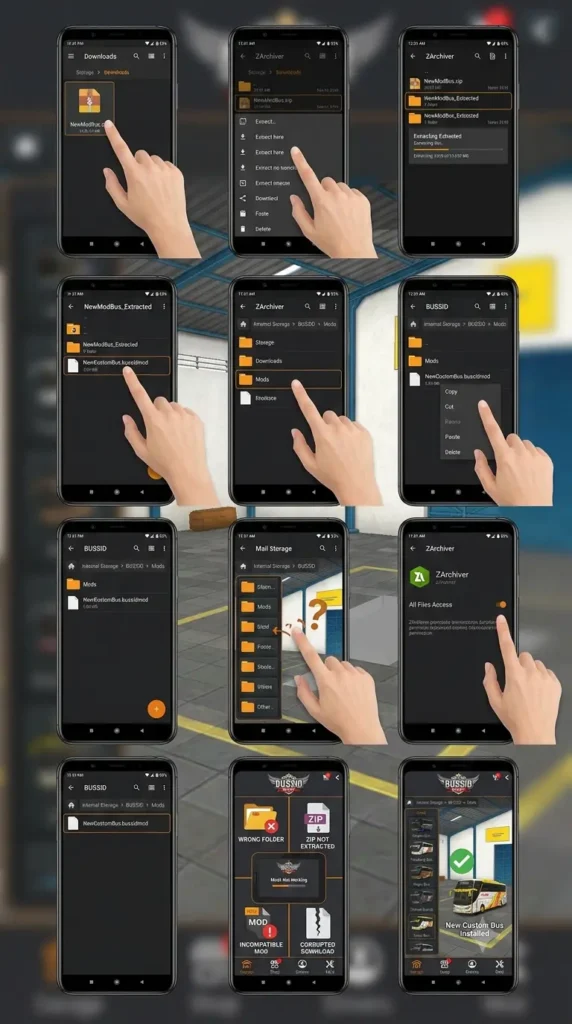
What Is a BUSSID Mod?
If you’re new to BUSSID, a mod is basically a custom vehicle that you can add to Bus Simulator Indonesia. Depending on the mod, you can find different buses, trucks, cars, and other custom vehicles.
Usually, the downloaded mod comes as a supported mod file or inside a ZIP/RAR archive. If it is compressed, you’ll need to extract it before installing it.
How to Add Mod in BUSSID
If you’re installing a BUSSID mod for the first time, don’t worry. The process is pretty easy once you know where the file needs to go.
Step 1: Download the BUSSID Mod
First, download the bus, truck, car, or other mod you want to use.
Once the download is complete, open your phone’s Download folder and find the file.
Step 2: Check the Downloaded File
Look at the file you downloaded.
If it ends with .ZIP or .RAR, you need to extract it first.
Don’t simply rename a ZIP or RAR file and expect BUSSID to recognize it. You need to extract the archive and find the actual mod file inside.
Step 3: Find the BUSSID Mods Folder
Now open your file manager or ZArchiver.
Go to:
Internal Storage → BUSSID → Mods
This is where you normally place your BUSSID vehicle mods.
Step 4: Copy the Mod
Select the actual mod file and tap Copy.
Then go to:
Internal Storage → BUSSID → Mods
and tap Paste.
Step 5: Open BUSSID
Now close ZArchiver and open Bus Simulator Indonesia.
Go to the Garage or Mod section and check whether your new vehicle is available.
That’s it!
How to Install Mod in BUSSID
If you want the quick version, here is the complete process for How to install mod in bussid:
- Download the BUSSID mod.
- Open ZArchiver.
- Go to the Download folder.
- Extract the ZIP/RAR file if required.
- Find the actual BUSSID mod file.
- Copy the mod file.
- Open Internal Storage → BUSSID → Mods.
- Paste the mod.
- Open Bus Simulator Indonesia.
- Go to the Garage/Mod section.
- Find your new vehicle.
- Select it and enjoy the mod.
If the vehicle is still missing, don’t worry. Let’s look at the most common problems.
Bussid Folder Not Sawing In Zarchiver App
One of the most frustrating problems is:
“Bussid Folder Not Sawing In Zarchiver App”
You have already downloaded the mod, opened ZArchiver, and now you can’t even find the BUSSID folder.
This can happen because of Android’s storage restrictions, file-manager permissions, or because you’re looking in the wrong storage location.
Try These Steps
First, open Bus Simulator Indonesia and let the game load completely. Then close the game.
Now open ZArchiver and check:
Internal Storage → BUSSID
If you still can’t find it:
- Check that ZArchiver has storage permission.
- Make sure you’re checking Internal Storage.
- Restart ZArchiver.
- Restart your phone.
- Search your storage for BUSSID.
- Open BUSSID again and check the folder afterward.
Also, don’t create several folders with similar names. You want to use the actual BUSSID folder used by your game.
Still Can’t Find the Folder?
Don’t panic. Android versions can handle storage differently, so the folder visibility can vary between devices.
Check your file manager’s permissions and make sure ZArchiver is allowed to access the storage locations you need.
Why My Mods Not Working in Bus Simulator Indonesia?
If you’re searching Why my mods not working in bus simulator indonesia, there are several possible reasons.
The good news is that most of them are easy to check.
1. The Mod Is in the Wrong Folder
This is probably the first thing you should check.
Make sure the actual mod file is inside:
BUSSID → Mods
If you accidentally put it in Downloads, Documents, or another folder, BUSSID may not detect it.
2. The Mod Is Still in ZIP/RAR Format
This is another very common mistake.
For example, if you have:
MyBusMod.zip
and you put that ZIP file directly into the Mods folder, the game may not recognize the actual mod inside it.
Extract the archive first and look for the required mod file.
3. The Mod File Is Damaged
Sometimes a download looks complete but the file itself is corrupted.
This can happen because the download was interrupted or the file was damaged on the server.
The easiest solution is to delete it and download the mod again.
4. The Mod Is Too Old
Not every mod works with every BUSSID version.
If you recently updated the game, an older mod may no longer work correctly.
Before downloading a mod, check whether the creator mentions a supported BUSSID version.
5. Storage Permission Problem
If your file manager can’t access the BUSSID folder properly, the mod may not be copied to the correct location.
Check your Android and ZArchiver storage permissions.
6. The Mod Itself Has a Problem
Sometimes everything is correct on your phone, but the mod simply doesn’t work.
Try another known-working mod.
If the second mod appears normally, the original mod is probably incompatible, incomplete, or damaged.
Mods Are Not Showing in BUSSID – Issue Fixed
If mods are not showing in bussid issue fixed is what you’re looking for, try these solutions one by one.
Fix 1: Check the Mods Folder
Make sure your mod is actually inside:
Internal Storage → BUSSID → Mods
Fix 2: Extract the Mod
If your download is a ZIP/RAR file, extract it first.
Fix 3: Check the File
Make sure you have copied the actual mod file and not just the downloaded archive.
Fix 4: Restart BUSSID
Completely close the game and remove it from your recent apps.
Then open it again and check the Mod/Garage section.
Fix 5: Check Game Compatibility
Make sure the mod supports your current BUSSID version.
Fix 6: Download the Mod Again
If you think the file may be corrupted, download it again from a reliable source.
Fix 7: Try Another Mod
This is a simple way to find out whether the problem is with your game or the particular mod.
BUSSID Mod Not Showing After Copying the File
Sometimes you do everything correctly, but the mod still doesn’t appear.
Don’t immediately delete the game or reinstall everything.
First, check these things:
Is the file in the correct folder?
Is the file extracted?
Is the mod compatible with your BUSSID version?
Does ZArchiver have the required storage permission?
Did you restart BUSSID after copying the file?
If everything looks correct, try another mod. This can quickly tell you whether the problem is with the particular mod file.
How to Install BUSSID Mod Using ZArchiver
ZArchiver makes it easy to extract and move BUSSID mod files.
Here’s the simple process:
1. Open ZArchiver
Open ZArchiver on your Android phone.
2. Go to Downloads
Find the BUSSID mod you downloaded.
3. Extract the File
If it is a ZIP/RAR archive, choose the extract option.
4. Find the Mod File
After extraction, look inside the new folder for the actual BUSSID mod file.
5. Copy It
Select the mod file and choose Copy.
6. Open the BUSSID Folder
Go to:
Internal Storage → BUSSID → Mods
7. Paste the Mod
Paste the file into the Mods folder.
8. Open the Game
Launch BUSSID and check the Garage/Mod section.
If everything is correct, your new vehicle should be available.
Why My Mods Not Working in Bus Simulator Indonesia – Video Guide
Sometimes reading instructions isn’t enough. If you prefer watching the process, you can also check this video:
Why my mods not working in bus simulator indonesia
Watch the BUSSID Mod Troubleshooting Video on YouTube
It can be useful if you’re having trouble understanding the folder or installation process.
Quick BUSSID Mod Troubleshooting Checklist
Before you decide that a BUSSID mod is broken, quickly check the following:
- The mod finished downloading.
- ZIP/RAR was extracted if necessary.
- You found the actual mod file.
- The mod is inside the correct BUSSID Mods folder.
- ZArchiver has storage access.
- Your BUSSID version is compatible with the mod.
- You restarted BUSSID after installation.
- Your phone has enough free storage.
- The mod file isn’t corrupted.
- You tested another mod.
Frequently Asked Questions
Why is my BUSSID mod not showing?
Usually, the mod is in the wrong folder, hasn’t been extracted, is incompatible with your BUSSID version, or the downloaded file is damaged.
How to add mod in BUSSID?
Download the mod, extract it if necessary, copy the actual mod file to the BUSSID → Mods folder, then restart the game and check the Garage/Mod section.
How to install mod in BUSSID using ZArchiver?
Open ZArchiver, find your downloaded mod, extract it if necessary, copy the actual mod file, and paste it inside the appropriate BUSSID → Mods folder.
Why is my Bussid Folder Not Sawing In Zarchiver App?
Check ZArchiver’s storage permissions, make sure you’re looking in Internal Storage, restart the app, and search for the BUSSID folder.
Why my mods not working in bus simulator indonesia?
Check the mod folder, file format, game version, storage permissions, and whether the mod file is corrupted. Testing another mod can also help identify the problem.
What should I do if mods are not showing in BUSSID?
First check the BUSSID → Mods folder. Then make sure the file is extracted and compatible with your game. Restart BUSSID and try another mod if necessary.
Can I install multiple BUSSID mods?
Yes, you can install multiple mods, but it’s a good idea to keep your storage free and remove mods that are causing problems.
Final Words
If your BUSSID Mod Not Showing, don’t worry. In most cases, there is a simple reason behind it.
Start with the basics: check the file, extract it if necessary, put it in the correct BUSSID → Mods folder, and restart the game.
If your Bussid Folder Not Sawing In Zarchiver App, check your storage permissions and make sure you’re looking in the correct internal storage location.
And if you’re still asking Why my mods not working in bus simulator indonesia, try another mod to determine whether the problem is with your game or the original file.
The easiest process to remember is:
Download → Extract → Copy → BUSSID/Mods → Restart BUSSID → Check Garage
Hopefully, these steps will help you fix the mods are not showing in bussid issue fixed problem and get your favorite BUSSID mod working again.