
Playing Bus Simulator Indonesia (BUSSID) with good graphics can make the whole driving experience much more enjoyable. Detailed buses, roads, buildings, weather, traffic, and realistic effects can make the game feel much more immersive.
But there is one common problem: higher graphics settings can also cause lag, FPS drops, heating, and battery drain, especially on phones with limited hardware.
The good thing is that you don’t always need an expensive or powerful smartphone to enjoy BUSSID smoothly. By adjusting a few graphics options, you can find a nice balance between visual quality and performance.
In this guide, we’ll look at the best bussid graphics settings for different types of smartphones and share some simple ways to improve FPS while keeping the game looking good.
Best BUSSID Graphics Settings for No Lag
There isn’t one graphics setup that will work perfectly on every smartphone. Your processor, GPU, RAM, screen resolution, and even the temperature of your phone can affect BUSSID performance.
As a starting point, try these settings:
| Setting | Recommended |
|---|---|
| Graphics Quality | Medium |
| Resolution | Medium |
| Shadow | Low/Medium |
| Reflection | Low |
| Anti-Aliasing | Off/Low |
| Traffic | Medium |
| Weather Effects | Low/Medium |
| FPS | 60 FPS if supported |
| Render Distance | Medium |
| Effects | Medium |
These settings are a good choice for players who want a smooth game without sacrificing too much visual quality.
If BUSSID still feels slow after applying them, you can lower a few settings further.
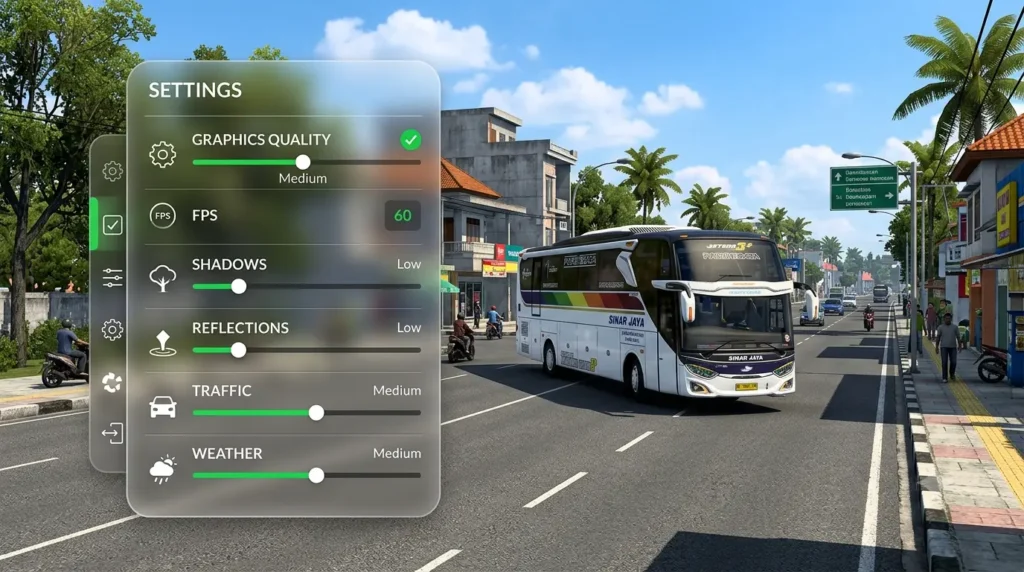
Best Graphics Settings for Bus Simulator Indonesia | No Lag 60 FPS
If your smartphone is capable of running BUSSID at 60 FPS, you should focus on keeping the frame rate stable rather than simply turning every graphics option to maximum.
Try the following configuration:
- Graphics Quality: Medium
- FPS: 60
- Shadows: Low
- Reflections: Low
- Anti-Aliasing: Off
- Traffic Density: Medium
- Effects: Medium
- Weather: Low
- Render Distance: Medium
This setup reduces the amount of work your GPU has to do while still keeping the game visually pleasing.
If you notice that the FPS keeps dropping below 60, start by reducing shadows, reflections, traffic, and weather effects. These options can make a noticeable difference in busy areas.
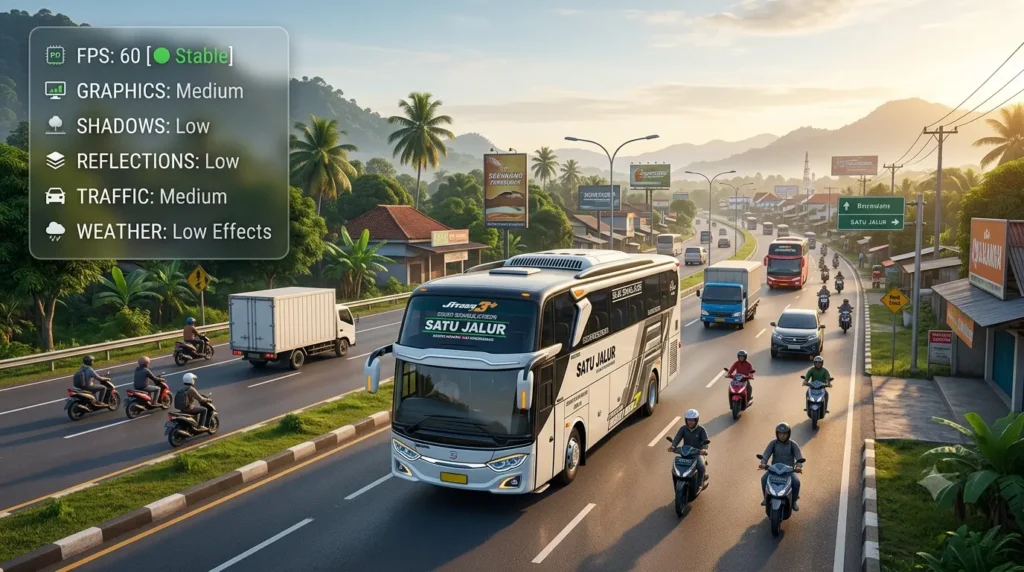
100% NO LAG BUSSID SETTINGS Best Graphics
A lot of players search for 100% NO LAG BUSSID SETTINGS Best Graphics, but there is no single setting that can guarantee absolutely zero lag on every phone.
Every device has different hardware, so the best approach is to adjust the settings according to your smartphone.
For Low-End Phones
If you’re playing BUSSID on an entry-level phone, don’t try to force maximum graphics. A stable frame rate will usually give you a much better experience.
Try these settings:
- Graphics: Low
- FPS: 30
- Shadows: Off
- Reflections: Off
- Anti-Aliasing: Off
- Traffic: Low
- Weather Effects: Low
- Render Distance: Low/Medium
This setup is designed to reduce the load on your phone and provide more consistent gameplay.
For Mid-Range Phones
Mid-range smartphones can usually handle a better combination of graphics and performance.
You can start with:
- Graphics: Medium/High
- FPS: 60
- Shadows: Medium
- Reflections: Low/Medium
- Anti-Aliasing: Low
- Traffic: Medium
- Weather Effects: Medium
- Render Distance: Medium/High
For many players, this gives a good middle ground between attractive graphics and smooth driving.
For High-End Phones
If you’re using a high-end smartphone with a capable processor and GPU, you can push the graphics further.
Try:
- Graphics: High
- FPS: 60
- Shadows: High
- Reflections: High
- Anti-Aliasing: Medium/High
- Traffic: High
- Weather Effects: High
- Render Distance: High
Keep in mind that even powerful phones can experience FPS drops when using very demanding bus mods, large maps, heavy traffic, or several visual effects together.
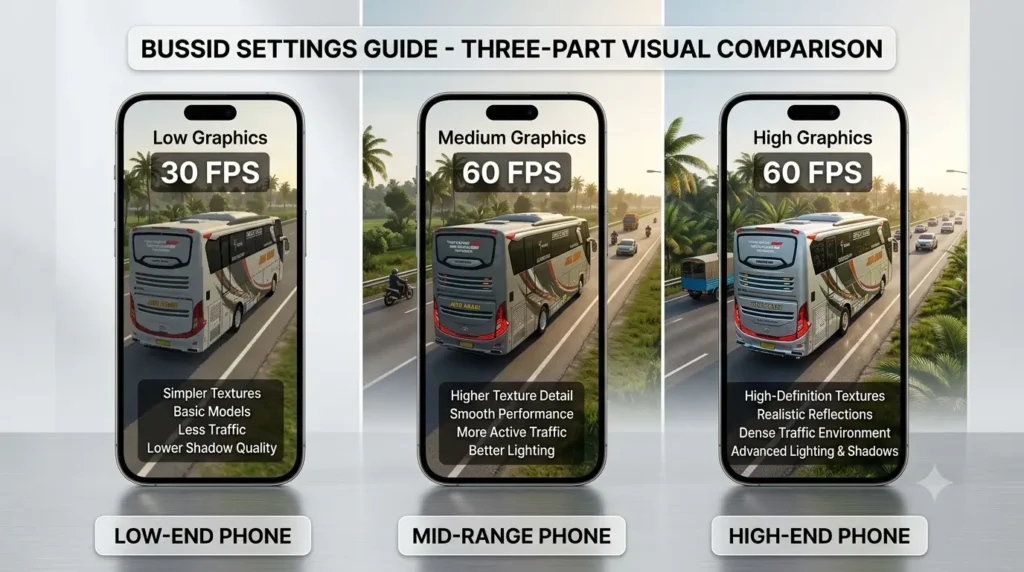
BUSSID Graphics Settings Download – Do You Need One?
You may come across websites offering a bussid graphics settings download and claiming that a particular configuration will completely remove lag or unlock unlimited FPS.
Be careful with these types of files.
You don’t normally need a third-party configuration file just to improve your BUSSID graphics. In most cases, you can get better performance by adjusting the game’s own settings according to your phone.
If you decide to use a third-party configuration, understand exactly what it changes and only download files from sources you trust.
For most players, manually adjusting the available graphics options is the simpler and safer choice.
Bus Simulator Indonesia All Settings
Before changing your configuration, it helps to understand what the different settings actually do.
1. Graphics Quality
Graphics quality affects the overall level of detail shown in the game.
If you’re experiencing frequent lag, reducing this setting is one of the easiest ways to reduce the workload on your device.
2. Shadows
Shadows add depth and make buses, buildings, and other objects look more realistic.
However, rendering shadows can also use additional GPU resources.
For better FPS: Try Low or Medium.
3. Reflections
Reflections can make vehicles and the surrounding environment look more realistic.
The downside is that they can require additional processing power.
For smoother gameplay: Keep reflections Low if your phone struggles with FPS.
4. Anti-Aliasing
Anti-aliasing helps smooth the edges of objects and can make the picture look cleaner.
However, it can also affect performance, especially on weaker devices.
For low-end phones: Turn it Off or keep it at Low.
5. Traffic
Traffic adds more vehicles to the roads, making the driving environment feel more alive.
At the same time, more vehicles mean your phone has more objects to process.
If you notice lag while driving through crowded locations, try reducing traffic density.
6. Weather Effects
Rain, fog, lighting, and other weather effects can make BUSSID look much more attractive.
However, these effects may also reduce FPS on some smartphones.
For a more stable experience, Low or Medium weather effects are a good starting point.
7. FPS
If your device can consistently maintain 60 FPS, select the 60 FPS option.
But remember: stable FPS is more important than simply selecting the highest FPS option.
A stable 30 FPS can feel better than a 60 FPS setting that constantly jumps between different frame rates.
What Should My Graphics Settings Be?
If you’re asking, What should my graphics settings be?, the answer depends mainly on your phone.
A simple starting point is:
Low-end phone: Low graphics + 30 FPS
Mid-range phone: Medium graphics + 60 FPS
High-end phone: High graphics + 60 FPS
After applying the settings, play for several minutes and see how your phone performs.
Don’t test only on an empty road. Drive through busy cities, use your regular bus mod, increase traffic, change the weather, and visit areas with plenty of buildings and objects.
If the game remains smooth, you can slowly increase the graphics settings.
If you notice stuttering or FPS drops, lower the more demanding options first.
What Are the Graphics Like in Bus Games?
Bus simulator games have come a long way. Modern titles can include detailed buses, realistic roads, buildings, weather, lighting, shadows, and environmental effects.
BUSSID is particularly popular because players can customize their experience with different buses, liveries, maps, and mods.
However, better visual quality generally requires more processing power.
That’s why the goal shouldn’t always be to use the highest possible graphics. Instead, try to find a setting that makes the game look good while keeping the FPS stable.
How to Reduce Lag in BUSSID
Graphics settings are important, but they’re not the only thing that affects performance.
Here are some additional things you can try.
Close Background Apps
Before opening BUSSID, close apps that you’re not using.
This can free up RAM and reduce the number of tasks your phone is handling while you play.
Keep Your Phone Cool
If your phone becomes very hot during gaming, its performance can decrease because of thermal throttling.
Try not to play for long periods in direct sunlight, and avoid covering the phone with something that prevents heat from escaping.
Don’t Use Too Many Heavy Mods
Some bus and map mods use high-resolution textures and detailed models.
While these mods may look fantastic, they can also require more RAM and GPU power.
If you suddenly start experiencing lag after installing a particular mod, try running BUSSID without that mod and compare the performance.
Keep Some Storage Free
Having almost no free storage isn’t ideal for overall smartphone performance.Try to keep a reasonable amount of free space available so your phone can work normally.
Restart Your Phone
If your phone has been running for a long time, a simple restart before playing BUSSID may help clear temporary background processes and give you a cleaner start.
What Is the Best Bus Mod for Bus Simulator Indonesia?
If you’re wondering What is the best bus mod for Bus Simulator Indonesia?, there isn’t one answer that will suit every player.It depends on what type of bus you enjoy driving.Some players like realistic Indonesian buses, while others prefer Indian buses, luxury coaches, double-decker buses, trucks, or unique custom vehicles.One important thing to remember is that highly detailed doesn’t always mean better for performance.
A very detailed mod with large textures may put more pressure on your phone. If smooth gameplay is your priority, a well-optimized bus mod can be a better choice than the heaviest available mod.
Best BUSSID Settings: Quick Recommendation
If you don’t want to spend a lot of time experimenting, start with this setup:
For smooth gameplay:
Graphics: Medium
FPS: 60
Shadows: Low
Reflections: Low
Anti-Aliasing: Off
Traffic: Medium
Weather: Low/Medium
Render Distance: Medium
Play with these settings for a while and see how your phone handles them.If you’re still experiencing lag, reduce the graphics quality and traffic.If everything is running smoothly, increase options such as shadows, reflections, and weather effects one at a time.
This way, you’ll quickly find the combination that works best for your particular device.
FAQ
What are the best BUSSID graphics settings for no lag?
For most phones, Medium graphics, 60 FPS, Low shadows, Low reflections, Medium traffic, and Low/Medium weather effects are a good starting point. Lower the graphics and traffic settings if your phone still experiences lag.
How can I get 60 FPS in Bus Simulator Indonesia?
If your phone supports 60 FPS, select 60 FPS and use Medium graphics. Keep shadows and reflections Low and reduce traffic or weather effects if you experience FPS drops.
What should my graphics settings be?
Your settings should match your phone’s hardware. Low-end phones should use Low graphics and around 30 FPS, while mid-range phones can generally start with Medium graphics and 60 FPS. High-end phones can try High graphics with 60 FPS.
Does high graphics cause lag in BUSSID?
Yes, higher graphics settings can put more load on your phone’s processor and GPU. Shadows, reflections, weather effects, traffic, and high-resolution mods can particularly affect performance.
Is there a 100% NO LAG BUSSID SETTINGS Best Graphics configuration?
There is no single configuration that guarantees 100% no lag on every smartphone. The best setup depends on your phone’s processor, GPU, RAM, temperature, and the mods or maps you use.
Do I need a BUSSID graphics settings download?
Usually, no. You can adjust the available graphics options inside the game. Be careful with third-party bussid graphics settings download files that claim to completely remove lag or unlock unlimited FPS.
What are the graphics like in bus games?
Modern bus games can feature detailed buses, realistic roads, buildings, weather, lighting, shadows, traffic, and environmental effects. BUSSID also allows players to customize their experience using buses, liveries, maps, and mods.
What is the best bus mod for Bus Simulator Indonesia?
There isn’t one bus mod that is best for everyone. It depends on your preferred bus type and gameplay style. If performance is important, choose a well-optimized mod instead of simply selecting the most detailed one.
Can heavy bus mods cause BUSSID lag?
Yes. Some detailed bus and map mods use high-resolution textures and complex models, which can increase RAM and GPU usage. If lag starts after installing a particular mod, test BUSSID without that mod.
How can I reduce BUSSID lag?
Lower graphics quality, shadows, reflections, traffic, and weather effects. Also close unnecessary background apps, keep your phone cool, maintain enough free storage, and avoid using too many heavy mods at the same time.
Final Thoughts
Finding the best bussid graphics settings isn’t about turning everything to Ultra or High.
The best setup is the one that gives you stable FPS, good-looking graphics, and comfortable gameplay on your particular smartphone.For many players, Medium graphics combined with 60 FPS, low shadows, low reflections, and moderate traffic is a great place to begin.Don’t hesitate to experiment. Change one setting at a time, test your game, and keep the configuration that gives you the best overall experience.
After all, smooth driving is much more enjoyable than playing with maximum graphics while dealing with constant lag, stuttering, and FPS drops.