
Are you enjoying Bus Simulator Indonesia (BUSSID) but suddenly noticing lag, low FPS, frame drops, or heating while driving? It can be really frustrating, especially when you are in the middle of a long route or using your favorite bus mod.
The good news is that most BUSSID performance problems can be improved with a few simple changes. In this guide, we will look at practical ways to get a reliable bussid lag fix, improve game performance, reduce frame drops, and make your gameplay smoother.
Whether you are searching for How to Fix Lag Issue in Bus Simulator Indonesia, BUSSID Low FPS? Solve Lag & Heating Problem Fast, or Fix Lag And Frame drop issue In Bus Simulator Indonesia, you can try the solutions below one by one.
Why Is BUSSID Lagging?
There can be several reasons why BUSSID starts running slowly. Sometimes the problem is your phone, while in other cases a bus mod or high graphics settings may be responsible.
Some common reasons include:
- High graphics settings
- Heavy bus or map mods
- Too many vehicles and traffic
- Low available RAM
- Almost-full internal storage
- Too many apps running in the background
- Phone overheating
- Outdated game version
- Playing while charging
- Poorly optimized custom mods
You don’t necessarily need a powerful gaming phone to enjoy BUSSID. The key is finding settings that match your device.
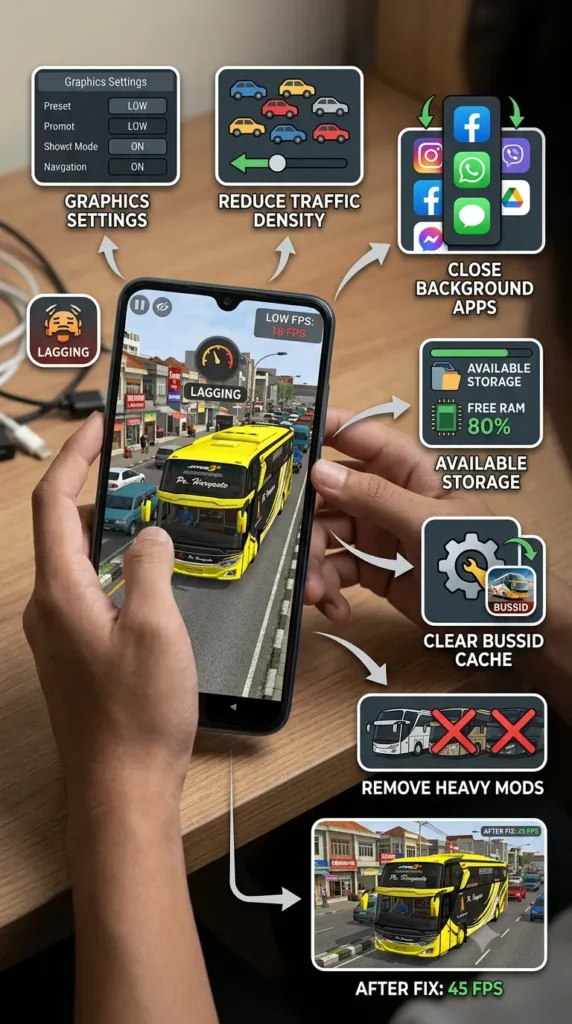
How to Fix BUSSID Lag
Let’s start with the easiest solutions. Try each method and check your gameplay after making the change.
1. Lower the Graphics Settings
High graphics look great, but they also make your phone work harder.
If BUSSID is struggling to maintain smooth FPS, open the game’s graphics settings and reduce the quality.
Try lowering:
- Graphics quality
- Resolution
- Shadows
- Reflections
- Traffic
- Other demanding visual effects
You don’t have to use the lowest settings permanently. Start low, test the game, and then increase the settings gradually until you find a good balance between visual quality and smooth gameplay.
This is one of the simplest methods for a bussid lag fix.
2. Try a Lightweight Bus Mod
Custom bus mods are one of the common reasons for FPS drops.
Some beautiful-looking mods have very detailed 3D models and large textures. They may look amazing, but your phone has to process all of that while you are playing.
A heavy mod may include:
- High-resolution textures
- Detailed interiors
- Large 3D models
- Lots of polygons
- Complex animations
- Extra visual effects
If BUSSID runs smoothly with the default bus but starts lagging when you select a particular mod, try removing that mod and testing another one.
This is especially useful when you want to fix bussid lag android devices.
3. Remove Mods You Don’t Use
Do you have dozens of buses, trucks, maps, and skins saved on your phone?
If yes, it may be worth cleaning up your BUSSID files.
Keep the mods you actually use and remove old or unnecessary files after making a backup of anything important.
A cleaner mod collection also makes it easier to identify which mod is causing a problem.
4. Close Background Apps
Before starting BUSSID, close apps that you aren’t using.
For example:
- YouTube
- Chrome
- Video editors
- Screen recording apps
- Other games
- Music apps
These applications can use RAM and CPU resources in the background.
Giving BUSSID more available resources can help reduce stuttering and improve frame stability.
Fix BUSSID Lag After Update
Did BUSSID work perfectly before an update but start lagging afterward?
Then you may specifically be looking for fix bussid lag after update.
Don’t immediately assume that your phone has become too slow.
First, try these steps:
- Restart your phone.
- Open BUSSID and check the graphics settings.
- Check whether another game update is available.
- Clear the BUSSID cache.
- Test the game without custom mods.
- Check how much free storage is available.
Sometimes an update can change settings or affect how existing mods behave. Testing the game without mods can help you determine whether the update or a specific mod is responsible.
Clear BUSSID Cache
Another simple thing you can try is clearing the app cache.
On most Android phones, you can find it under:
Settings → Apps → Bus Simulator Indonesia → Storage → Clear Cache
The exact menu can be slightly different depending on your phone brand and Android version.
Important Tip
Be careful not to select Clear Data unless you understand what it will remove.
If you have important BUSSID mods, skins, or other files, make a backup before making major changes.
How to Fix BUSSID Frame Drops
Frame drops usually become noticeable when the game suddenly changes from smooth gameplay to stuttering.
For example, you might be driving normally and then enter a busy city area where the FPS suddenly falls.
This can happen because the phone has to render more objects, traffic, buildings, effects, and vehicles at the same time.
To reduce frame drops:
- Lower graphics settings.
- Reduce traffic.
- Try a lighter bus.
- Close background applications.
- Keep your phone cool.
- Free up storage space.
- Avoid unnecessary visual effects.
These steps can help you fix bussid lag issues without making complicated changes to your phone.
BUSSID Lag and Heating Problem
Heating and lag can sometimes go together.
When a smartphone becomes very hot, it may reduce its performance to control the temperature. As a result, you may notice lower FPS or more frequent frame drops.
If your phone gets hot while playing BUSSID, try the following:
Don’t Play While Charging
Playing a demanding game while the phone is charging can increase heat.
If possible, charge your phone first and then play.
Reduce Graphics
Lower graphics settings reduce the workload on the processor and GPU.
Close Other Apps
Don’t leave several demanding applications running while playing.
Give Your Phone a Break
If the phone becomes unusually hot, stop playing and let it cool down naturally.
Avoid putting a hot phone in a refrigerator or freezer. A sudden temperature change can cause condensation and potentially damage the device.
Fix BUSSID Lag While Playing Games
If BUSSID isn’t the only game that is lagging, the problem may be related to your phone’s overall performance.
Check the following:
- Available RAM
- Free storage
- Battery saver mode
- Device temperature
- Background applications
- System software updates
If your internal storage is almost completely full, freeing up some space may also help your phone operate more comfortably.
How to Test Your BUSSID Performance
If you aren’t sure what is causing the lag, you can perform a simple fix bussid lag test.
Try four different combinations:
Test 1
Default bus + Low graphics
Test 2
Default bus + High graphics
Test 3
Heavy mod + Low graphics
Test 4
Heavy mod + High graphics
Now compare the results.
If the default bus runs smoothly but the heavy mod doesn’t, the mod is probably demanding too many resources.
If everything becomes smoother when you lower the graphics, your graphics settings were probably too demanding for your device.
Fix BUSSID Lag Caused by Mods
Sometimes the game itself isn’t the problem.
A poorly optimized or extremely detailed mod can cause performance issues even on a reasonably capable phone.
If your lag started immediately after installing a new bus or map, remove that file temporarily.
Then open BUSSID and test the game again.
If the lag disappears, you have probably found the cause.
Try another version or a lighter alternative instead of immediately changing your entire phone configuration.
Don’t Trust Every “Lag Fix” App
While searching for a solution, you may come across strange terms such as fix bussid lag pills, fix bussid lag kit, or fix bussid lag remedy.
Be careful with applications or websites that promise an instant 100% FPS boost.
You generally don’t need a mysterious third-party application to fix BUSSID.
Some so-called booster apps continue running in the background and may actually consume additional system resources.
It’s better to start with the game’s own settings and your phone’s built-in performance options.
Quick BUSSID Lag Fix Checklist
Before starting a long BUSSID journey, try this quick checklist:
- Restart your phone
- Close unnecessary apps
- Clear the game’s cache
- Lower graphics settings
- Reduce traffic
- Remove unused mods
- Test a lightweight bus
- Keep enough free storage
- Turn off battery saver while gaming
- Avoid playing while charging
- Let your phone cool down if it becomes hot
- Keep BUSSID updated
These simple steps can solve many common performance problems.
Bus Simulator Indonesia 100% Lag Fix – Can You Really Get 100%?
You may see people searching for Bus Simulator Indonesia 100% Lag Fix, but there isn’t one magic setting that can guarantee zero lag on every device.
Every phone is different.
Performance depends on things like:
- Processor
- GPU
- RAM
- Storage
- Android version
- BUSSID version
- Graphics settings
- Bus and map mods
- Device temperature
A setting that works perfectly on one phone may not work as well on another.
The best approach is to find the settings that match your particular device.
Frequently Asked Questions
How to fix lag in BUSSID?
Start by lowering graphics settings, closing background apps, clearing the cache, removing heavy mods, freeing storage, and keeping your phone cool.
Why is BUSSID lagging after an update?
If you need to fix bussid lag after update, restart the phone, check the graphics settings, clear the cache, update the game if a newer patch is available, and test the game without custom mods.
Can a bus mod cause BUSSID lag?
Yes. Highly detailed buses with large textures and complex models can require more processing power and may result in FPS drops.
How can I fix bussid lag android problems?
For fix bussid lag android, try reducing graphics quality, closing background apps, clearing cache, using lightweight mods, and preventing the phone from overheating
Does clearing cache delete my mods?
Clearing cache and clearing app data are different operations. However, it is always a good idea to back up important BUSSID files before making changes.
How do I reduce BUSSID heating?
Lower the graphics settings, avoid playing while charging, close unnecessary apps, and take a break if the phone becomes excessively hot
Do I need a third-party FPS booster?
Usually, no. Try optimizing BUSSID and your phone’s built-in settings first
Conclusion
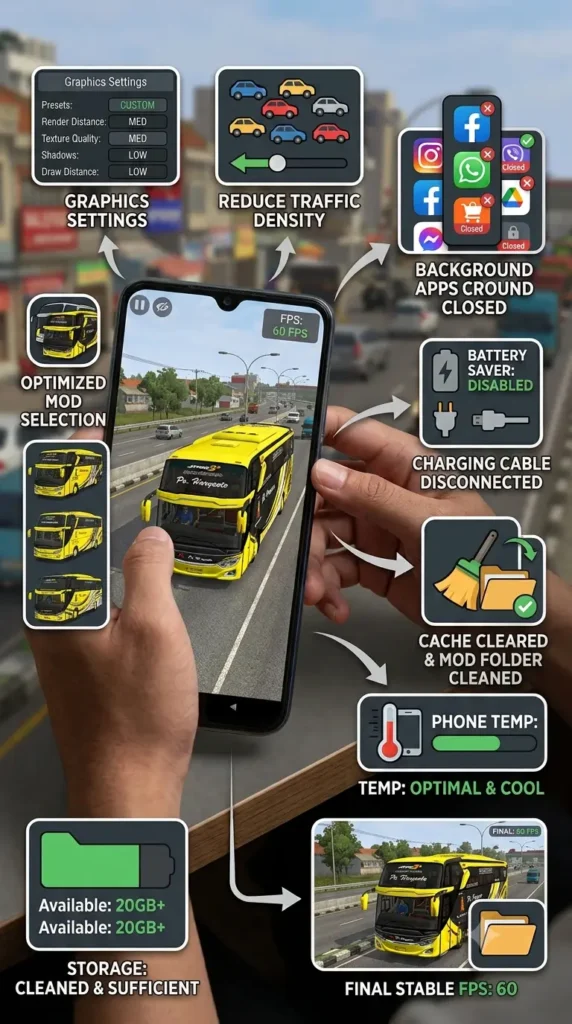
Lag can quickly ruin an otherwise enjoyable BUSSID driving session, but you don’t always need a new phone to improve the situation.
Start with the simple things: lower your graphics settings, close background apps, remove heavy mods, clear the cache, keep enough storage available, and avoid excessive heating.
If you are searching for bussid lag fix, How to Fix Lag Issue in Bus Simulator Indonesia, BUSSID Low FPS? Solve Lag & Heating Problem Fast, or Fix Lag And Frame drop issue In Bus Simulator Indonesia, work through these solutions one at a time.
The most important thing is to find out what is actually causing the lag on your device. Once you identify the problem, fixing it becomes much easier.