
If you’re stuck with a livery adding problem in bus simulator Indonesia, you’re not alone. A lot of players face this issue where the livery just doesn’t show up on the bus, or the name doesn’t appear properly. This is one of the most common headaches in the game.
In this post, I’ll share simple and working ways on How to solve bussid livery problem. Whether you’re dealing with bus simulator indonesia livery name not working or the full Livery Not Working Bus Simulator Indonesia Bussid issue, these fixes should help you out.
Why Is Your BUSSID Livery Not Showing?
Before we jump into the solutions, let’s quickly understand the usual reasons:
- You’re using JPG instead of PNG
- The livery doesn’t match the bus or mod
- Android permission issues (especially on Android 11 and above)
- Unstable internet while installing
- High Resolution option is not turned on
- Wrong file location or corrupted image
Now let’s fix it step by step.
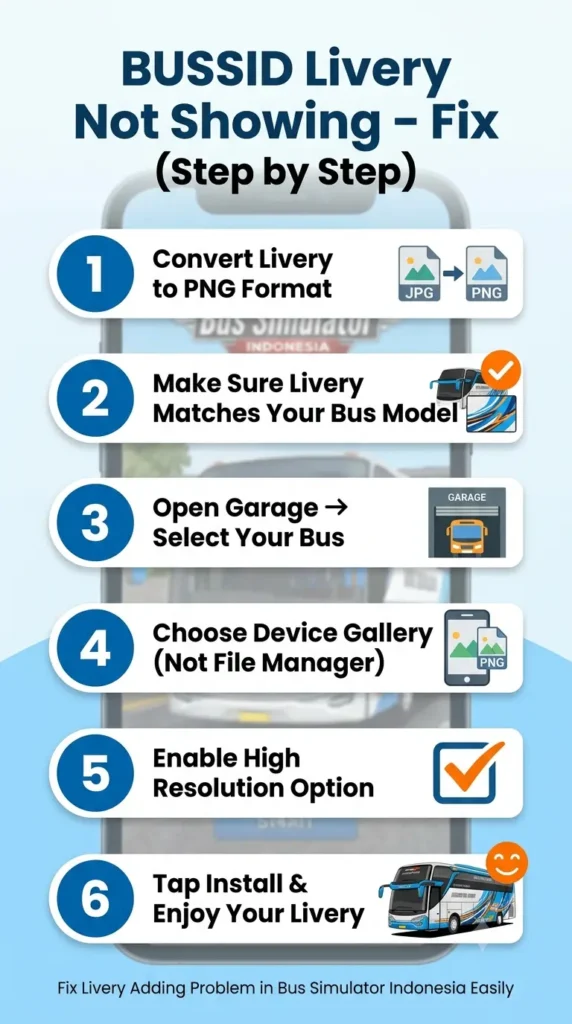
Easy Ways to Fix BUSSID Livery Not Showing
1. Always Use PNG Format
This is the number one reason behind the problem.
JPG files often don’t work properly, especially on the glass (kaca). Always convert your livery to PNG format. You can use free apps like PicsArt or any JPG to PNG converter. Once it’s in PNG, try installing again.
2. Make Sure the Livery Matches Your Bus
A very common cause of the livery adding problem in bus simulator Indonesia is using the wrong livery for the wrong bus.
For example, a Jetbus 3 livery won’t work properly on a different model. Always check that the livery is made for the exact bus or mod you’re using.
3. Install Through Device Gallery (Best Method)
On newer Android versions, File Manager sometimes causes issues. Here’s the better way:
- Open Bus Simulator Indonesia
- Go to Garage
- Select your bus
- Tap the Palette/Livery icon
- Choose Select Livery File
- Pick Device Gallery (not File Manager)
- Select your PNG file
- Tick High Resolution
- Tap Install
This method solves many cases of bus simulator indonesia livery name not working.
4. Check Your Internet Connection
You need a stable internet connection while installing the livery.
If Wi-Fi is giving trouble, try switching to mobile data. Sometimes just turning Airplane Mode on and off once also helps.
5. Don’t Forget High Resolution
Always enable the High Resolution option before installing. Without it, the livery can look blurry, broken, or not show up fully on the body and glass.
6. Clear Cache and Restart
If nothing works yet:
- Go to your phone Settings → Apps → Bus Simulator Indonesia → Storage → Clear Cache
- Restart your phone
- Open the game and try installing the livery again
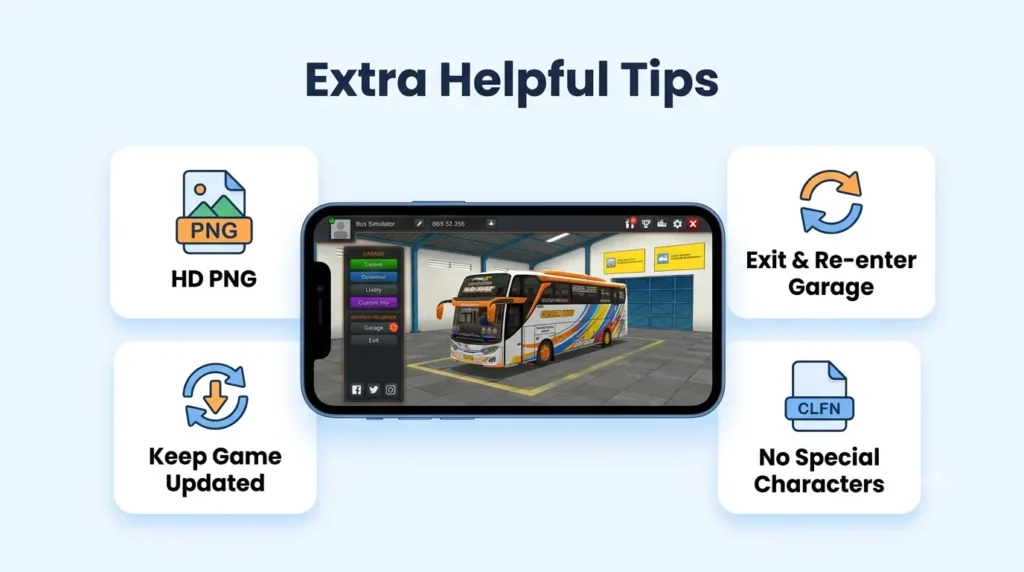
Extra Helpful Tips
- Use high-quality HD PNG files for the best result
- After installing, exit the garage and go back in to refresh
- Keep the game updated
- Avoid special characters in the file name
FAQs – BUSSID Livery Not Showing – Fix
Why is my livery not showing in Bus Simulator Indonesia?
This is a very common livery adding problem in bus simulator Indonesia. Most of the time it happens because the file is in JPG format instead of PNG, the livery doesn’t match the bus model, or the High Resolution option is not enabled. Using the wrong file format is usually the main reason the livery fails to appear on the body or glass.
How to solve bussid livery problem easily?
The simplest way for How to solve bussid livery problem is to convert your livery to PNG format, make sure it matches your bus or mod, select it through Device Gallery (not File Manager), and always tick the High Resolution box before installing. These four steps fix the issue for most players.
Why is bus simulator indonesia livery name not working?
When you face bus simulator indonesia livery name not working, it usually means the game is not reading the file properly. This often happens due to special characters in the file name, wrong format, or permission issues on Android 11 and above. Try renaming the file cleanly and selecting it from Device Gallery.
What should I do if Livery Not Working Bus Simulator Indonesia Bussid?
If you’re dealing with Livery Not Working Bus Simulator Indonesia Bussid, first check that your file is PNG. Then install it through Device Gallery, enable High Resolution, and make sure your internet connection is stable. Clearing the game cache and restarting your phone also helps in many cases.
Does the livery need to match the bus model?
Yes, this is very important. Using a livery made for a different bus is one of the biggest reasons behind the livery adding problem in bus simulator Indonesia. Always download a livery that is specifically designed for the bus or mod you are using.
Why does the livery not appear on the glass (kaca)?
This happens mostly when the file is JPG instead of PNG. PNG supports transparency, which is needed for the glass area. Also make sure High Resolution is turned on. These two things usually fix the glass problem.
Is internet required to install a livery in BUSSID?
Yes, a stable internet connection is needed while installing the livery. If Wi-Fi is unstable, try using mobile data. Poor connection can cause the livery to fail or the name not to appear properly.
What is the best way to install livery on Android 11 and above?
On newer Android versions, always choose Device Gallery instead of File Manager when selecting the livery. This method avoids most permission-related problems and works much better for players facing Livery Not Working Bus Simulator Indonesia Bussid.
Final Thoughts
Most of the time, the Livery Not Working Bus Simulator Indonesia Bussid problem gets fixed by using the correct PNG file, matching the bus model, selecting from Device Gallery, and turning on High Resolution.
Follow these steps one by one and your livery should start showing properly.
Hope this guide on How to solve bussid livery problem helps you. Now go enjoy your customized bus in BUSSID