
Have you recently updated Bus Simulator Indonesia and suddenly found that your favorite mod is not working? Don’t worry you’re not the only one facing this problem.
After a BUSSID update, some players may notice that their bus, truck, car, or other custom mods are no longer appearing or loading properly. Sometimes the mod simply disappears, while in other cases it may cause the game to crash or fail to load the vehicle.
The good news is that most of these problems can be fixed with a few simple checks.
In this guide, we’ll explain why mods may stop working after an update and show you how to install and troubleshoot them correctly.
BUSSID Me MOD Nahi Lag Raha? Fix + Installation Guide
If you are searching for BUSSID Me MOD Nahi Lag Raha? Fix + Installation Guide, the first thing you should check is whether your mod is compatible with the latest version of the game.
A BUSSID update can sometimes affect the compatibility of older mods. This means a mod that worked perfectly before the update may not work correctly afterward.
Before trying complicated solutions, check these basic things:
- Make sure the mod file has downloaded completely.
- Check that you are using the correct mod file.
- Put the file in the proper BUSSID Mods folder.
- If the mod is compressed, extract it according to its instructions.
- Restart the game after installing the mod.
- Check whether the mod supports your current BUSSID version.
- If the mod is damaged, download it again.
These simple checks can solve many common mod problems.
Why my mods not working in bus simulator indonesia?
If you are wondering Why my mods not working in bus simulator indonesia, there could be several reasons.
The most common causes are an outdated mod, incorrect file placement, damaged files, or compatibility problems after a game update.
Let’s look at each possibility.
1. Your Mod Is Outdated
One of the biggest reasons a mod may stop working after an update is compatibility.
If the BUSSID game has received a major update, an older mod may not work properly with the new version.
What to do: Look for an updated version of the same mod and check the information provided by the mod creator.
2. The Mod File Is Damaged
A mod that was not downloaded completely may not work correctly.
This can happen if your internet connection was interrupted while downloading or if the file became corrupted.
Try deleting the old file and downloading the mod again.
3. The Mod Is in the Wrong Folder
Sometimes the mod itself is perfectly fine, but BUSSID cannot find it because it has been placed in the wrong location.
When using a file manager, carefully check the folder where you are moving the mod.
Also make sure you haven’t accidentally placed the mod inside an extra folder.
4. You Haven’t Extracted the Mod Correctly
Some BUSSID mods are provided in compressed ZIP or RAR files.
If the actual mod file is inside the archive, you may need to extract it first.
A simple installation flow is:
Download → Extract if required → Find the actual mod file → Move it to the BUSSID Mods folder → Open BUSSID → Check the mod
However, always follow the specific instructions included with the mod because different mods can have different installation requirements.
5. The Mod Requires Additional Files
Some custom mods may need additional textures, liveries, or other files.
If those required files are missing, the vehicle may not appear correctly or may not function as expected.
Check the mod’s installation instructions before assuming the game itself is the problem.
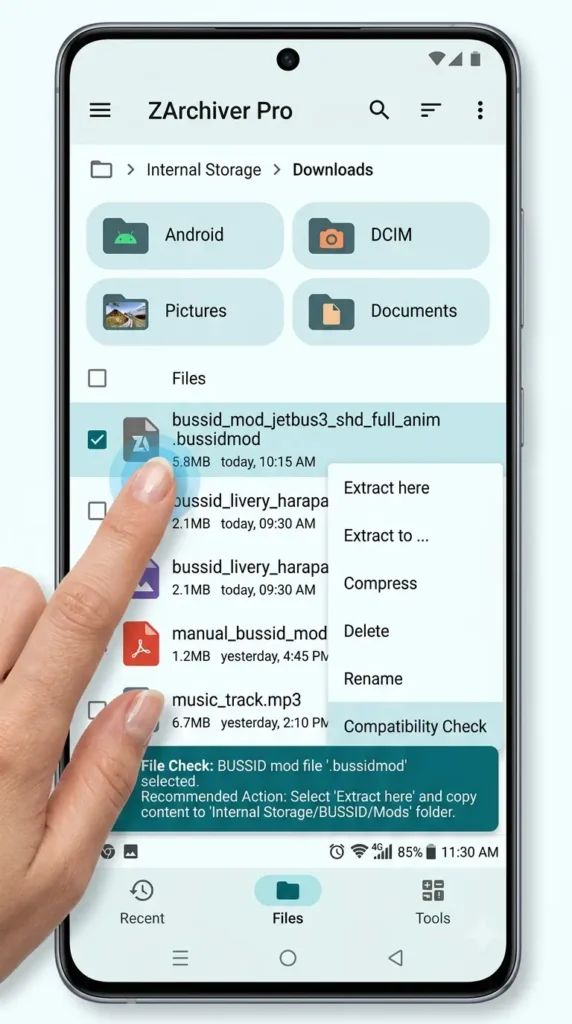
Bus Simulator Indonesia Mod Not Working?
If you’re facing the Bus Simulator Indonesia Mod Not Working? issue, don’t immediately delete the game or install another APK.
Start with some basic troubleshooting.
Step 1: Close the Game
Completely close Bus Simulator Indonesia.
Remove it from your recent apps and then wait for a few seconds.
Step 2: Check Your Mod File
Open your file manager and find the mod you downloaded.
Make sure the download is complete and that the file isn’t corrupted.
If the file cannot be opened or looks incomplete, download it again.
Step 3: Check the Mod Folder
Make sure the mod is placed in the correct BUSSID Mods folder.
Pay attention to the folder structure. A common mistake is putting the mod inside another folder instead of directly in the location where BUSSID expects to find it.
Step 4: Open BUSSID Again
After moving the file, start Bus Simulator Indonesia again.
Go to the game’s vehicle/mod section and check whether the mod is available.
Step 5: Test the Mod
If the mod appears, select it and test it in the game.
If it works, the installation was successful.
If the game crashes or the vehicle doesn’t load, continue with the next steps.
Step 6: Check Compatibility
Look at the mod’s version information.
If it was made for an older version of BUSSID, it may not be compatible with your current game.
In that situation, try finding a newer version of the mod.
BUSSID Mod Not Showing After Update
Another common problem is when the mod file is installed but doesn’t appear in the game.
If this happens, try the following:
- Close and reopen BUSSID.
- Check the mod’s location.
- Make sure the file format is supported.
- Extract the archive if required.
- Download the mod again if the file appears damaged.
- Check the mod’s compatibility with your current game version.
- Remove the old copy and reinstall the mod.
If the mod still doesn’t appear, the file itself may be outdated or incompatible.
How to Install BUSSID Mods Correctly
Installing a BUSSID mod isn’t difficult when you have the correct file and follow the right procedure.
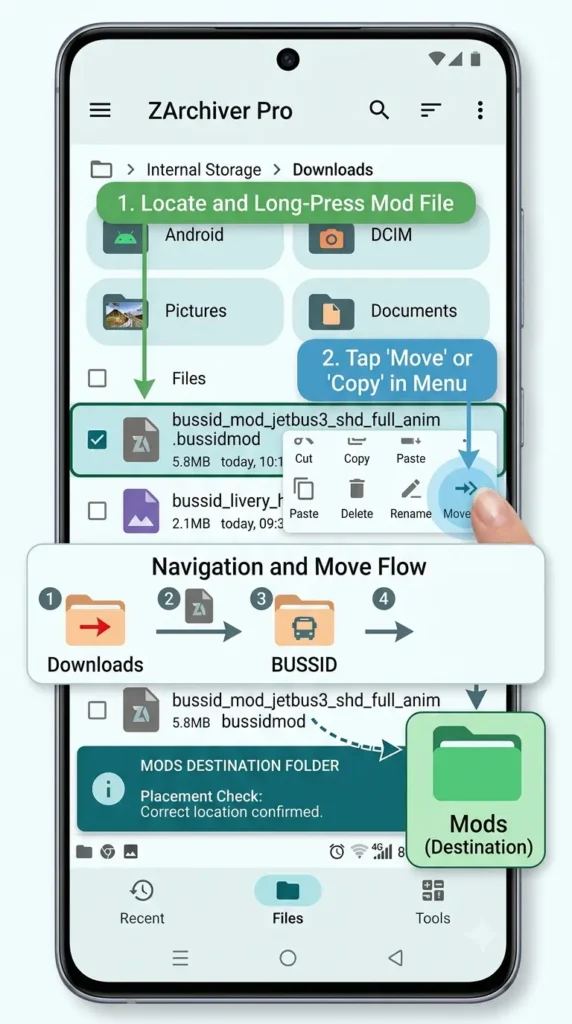
Step 1: Download a Compatible Mod
Choose a mod that is suitable for your current BUSSID version.
Avoid downloading incomplete or suspicious files from unknown sources.
Step 2: Open Your File Manager
Use the file manager on your Android device to locate the downloaded mod.
Step 3: Extract the File if Necessary
If the mod is inside a ZIP or RAR archive, extract it according to the instructions provided with the mod.
Step 4: Find the Actual Mod File
After extraction, locate the actual BUSSID mod file.
Don’t move the entire download folder if the instructions specifically tell you to move only the mod file.
Step 5: Move the Mod to the Correct Folder
Place the mod file inside the appropriate BUSSID Mods folder.
Double-check the location before opening the game.
Step 6: Restart BUSSID
Open Bus Simulator Indonesia after the file has been moved.
Check the mod or vehicle section.
Step 7: Select and Test the Mod
If the mod appears, select it and take it for a test drive.
If everything is compatible, it should work normally.
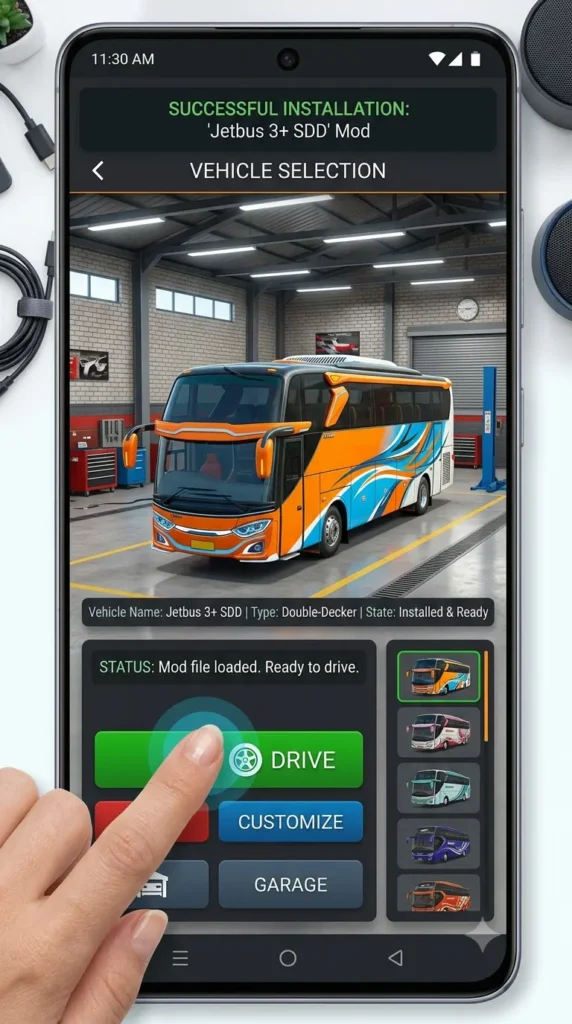
How to Fix BUSSID Mod Crashing After an Update
Sometimes the mod appears in the game but crashes when you try to use it.
This can happen because the mod isn’t compatible with the current version or because some required files are missing.
Try these solutions:
- Remove the problematic mod.
- Restart BUSSID.
- Install an updated version of the mod.
- Test another compatible mod.
- Check whether additional files are required.
- Avoid installing several new mods at once.
Testing mods one at a time is a good way to identify which file is causing the problem.
Why Does a Mod Work Before the Update but Not After?
This is a common question among BUSSID players.
A game update can change certain systems or features that a custom mod depends on. As a result, an older mod may no longer behave as expected.
It doesn’t necessarily mean that the mod was bad.
In many cases, you simply need to wait for the mod creator to release an updated version.
Should You Reinstall BUSSID?
Reinstalling the entire game should not be your first solution.
Before doing that, check:
- Mod compatibility
- Mod file integrity
- Folder location
- Required files
- Other installed mods
If other mods work normally while one particular mod doesn’t, the problem is more likely related to that specific mod.
Avoid Random APKs and Suspicious Mod Files
When troubleshooting a mod, you may find websites offering modified APKs or unusual downloads.
Be careful with these files.
You don’t need to install an unofficial game APK simply because a mod isn’t working. First, try fixing the mod itself and use the official game version whenever possible.
Downloading files from unreliable sources can also create additional problems for your device.
Quick Fix Checklist
Still having trouble? Here’s a quick checklist you can follow:
✔ Check the mod version
✔ Re-download the mod
✔ Extract the file correctly
✔ Check the BUSSID Mods folder
✔ Restart the game
✔ Remove conflicting mods
✔ Check for required additional files
✔ Try an updated version of the mod
These steps cover most common BUSSID mod installation problems.
FAQ – BUSSID Mod Not Working After Update
Why is my BUSSID mod not working after an update?
The mod may be outdated or incompatible with the new BUSSID version. Check whether an updated version of the mod is available.
Why is my BUSSID mod not showing?
Check the mod file, folder location, file format, and installation process. Also make sure the mod is compatible with your current BUSSID version.
Can an old BUSSID mod work after a game update?
It can, but compatibility isn’t guaranteed. Some older mods may continue working, while others may need to be updated.
Why does BUSSID crash when I select a mod?
The mod could be incompatible, damaged, or missing required files. Remove the mod and test another compatible one to identify the problem.
Do I need to reinstall BUSSID if a mod doesn’t work?
Usually, no. First check the mod file, installation folder, compatibility, and other installed mods before reinstalling the game.
Why is my mod installed but not visible in BUSSID?
The file may be in the wrong folder, incorrectly extracted, unsupported, or incompatible with the current game version.
How can I fix a BUSSID mod that stopped working?
Try reinstalling the mod, checking its compatibility, downloading a fresh copy, and removing conflicting or outdated mods.
Can multiple mods cause BUSSID problems?
Yes. In some situations, a particular mod can conflict with another mod. Testing them individually can help identify the problematic file.
More BUSSID Mod Guides
Still having trouble with your BUSSID mods? These related guides can help you solve common installation and compatibility problems:
- BUSSID Mod Not Showing – Fix: If your mod is installed but doesn’t appear inside the game, follow this detailed troubleshooting guide: BUSSID Mod Not Showing – Fix
- How to Install BUSSID Mods on Android: If you’re new to BUSSID mods or want to learn the correct installation process, check this step-by-step guide: How to Install BUSSID Mods on Android
These guides cover different parts of the BUSSID mod installation process, so they can be useful if the basic troubleshooting steps in this article don’t solve your problem.
Final Words
The BUSSID Mod Not Working After Update problem can be frustrating, especially when a mod was working perfectly before the game update.
In most cases, you don’t need to reinstall everything. Start by checking the mod’s compatibility, file condition, folder location, and installation process.
If your mod is installed but still isn’t appearing in the game, our guide on BUSSID Mod Not Showing – Fix can help you troubleshoot the issue. And if you are completely new to mods, the How to Install BUSSID Mods on Android guide explains the installation process step by step.